

- QFPay POS (Haojin App)
- Client device (e.g. cashier web app)
- Merchant backend server (optional for async notification)
Integration Overview
The HTTPS ECR flow requires configuration across three components:- Merchant Portal (MMS) → Enable HTTPS mode
- POS Device (Haojin App) → Sync and verify HTTPS status
- Client Device → Install certificate and send HTTPS requests
- (Optional) Merchant backend → Receive async notifications
1. Enable HTTPS in Merchant Portal (MMS)
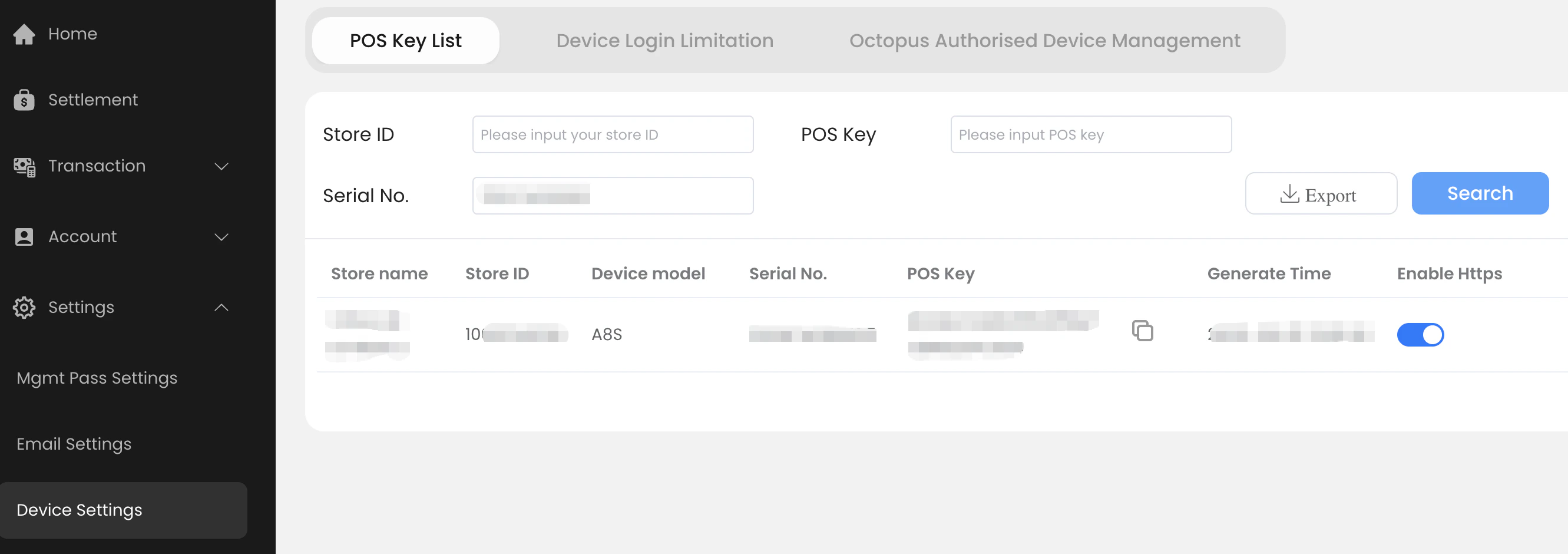
Go to:👉 https://merchant.qfpay.global/main/devicePosMSetting Path:
Settings → Device Setting → Search POS Key List
- Enable “HTTPS”
- Save configuration
2. Verify HTTPS Mode on POS (Haojin App)
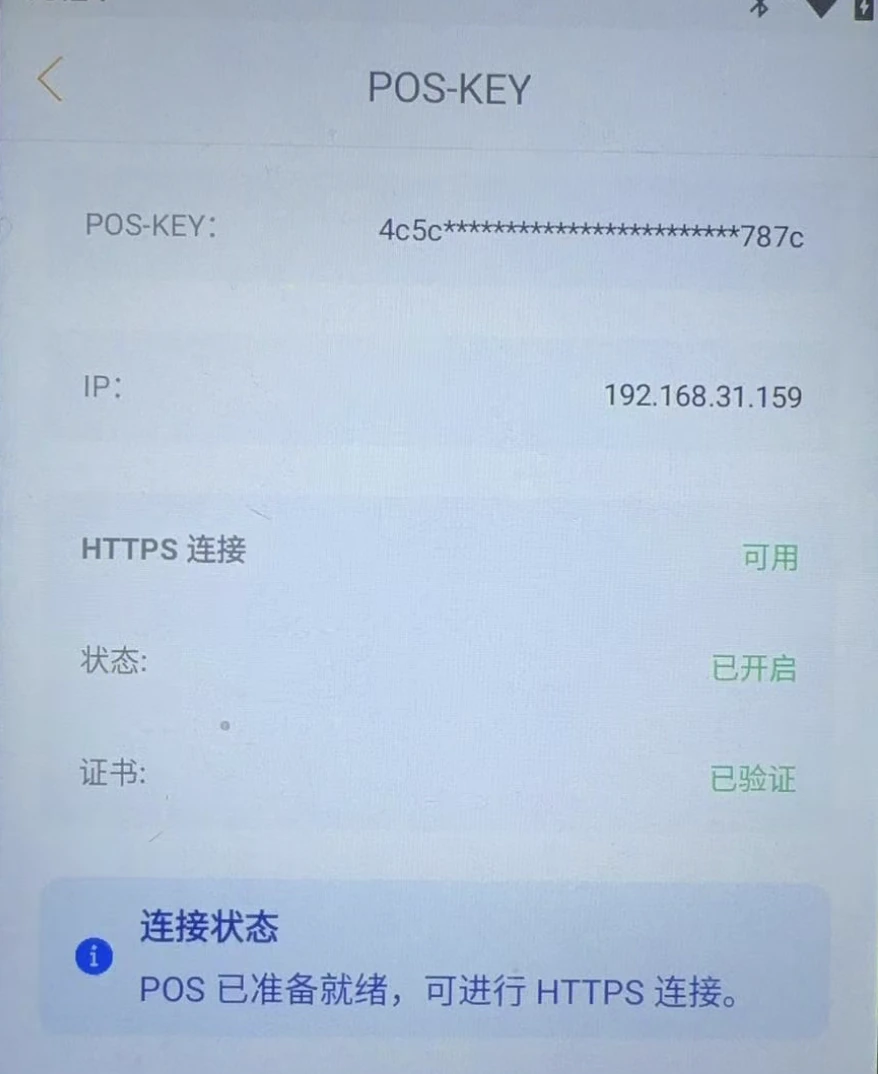
After enabling HTTPS:- Restart or re-login Haojin App
- Configuration will automatically sync to the POS
Settings → ECR Status
Ensure:
- HTTPS mode is enabled
- Certificate is auto-generated
3. Configure Client Device (Cashier / Web App)
The client device must trust the POS HTTPS certificate.Install CA Certificate
Download and install: ca3.crt Verification fingerprints:Installation Notes
- Android: Install under trusted credentials
- Windows:
Control Panel → Certificates → Trusted Root Certification Authorities
4. Configure Merchant Backend (Async Notification)
For transaction status updates, configure your backend to receive notifications.Setup
- Contact QFPay support to register your webhook:
👉 technical.support@qfpay.com - Provide:
- Merchant ID
- Store ID
- Notification URL
Configuration Checklist
Before going live, confirm all items:- POS HTTPS enabled in MMS
- Haojin App shows HTTPS enabled + certificate generated
- Client device installed CA certificate correctly
- Certificate fingerprint matches
ca3.crt - Client app connects using correct:
- POS IP address
- Secret / credentials
- Webhook / notification URL configured in QFPay
Example: Odoo Integration
Reference: 👉 https://www.odoo.com/documentation/19.0/applications/sales/point_of_sale/payment_methods/terminals/qfpay.html Example: Merchant domain:Troubleshooting
Connectivity Issues
- Check POS →
ECR Statuspage (ensure HTTPS service is running) - Test endpoint via browser or
curl - Restart POS application
- Try another POS device
- Check network restrictions:
- Wi-Fi isolation
- Router firewall rules
Fixed IP Address Issues
If connection is unstable:- Configure router DHCP settings
- Bind POS MAC address to a fixed IP
- Ensure client uses the same IP consistently
Common Pitfalls
Summary
To successfully enable HTTPS ECR:- Enable in MMS
- Verify on POS
- Install certificate on client
- (Optional) Configure webhook