HTTPS setup for ECR Integration
Merchant integration setup
1. MMS - Enable ECR HTTPS
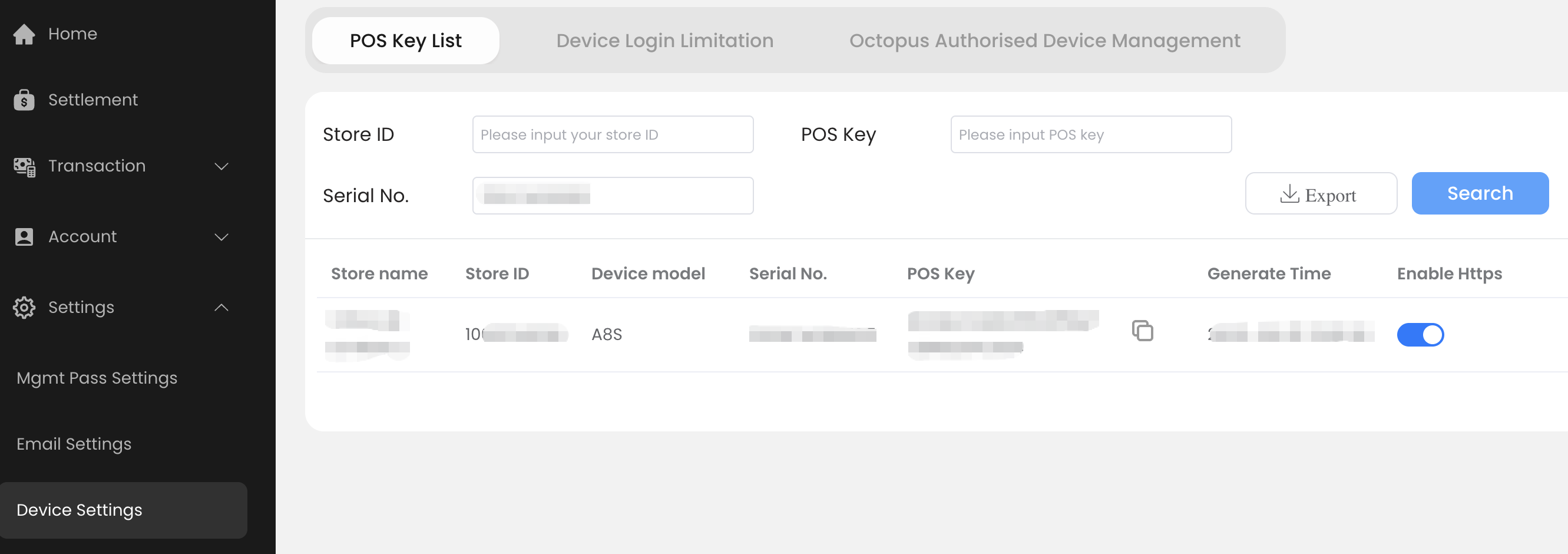
ECR integration mode can be managed via Merchant Management Portal (MMS) QFPay - Merchant portal
Go to Settings > Device Setting, search POS Key List
Switch on Enable Https to enable ECR HTTPS
2. Haojin App - Verify HTTPS mode
Restart / re-signin Haojin App, the ECR mode will be synchronised to POS
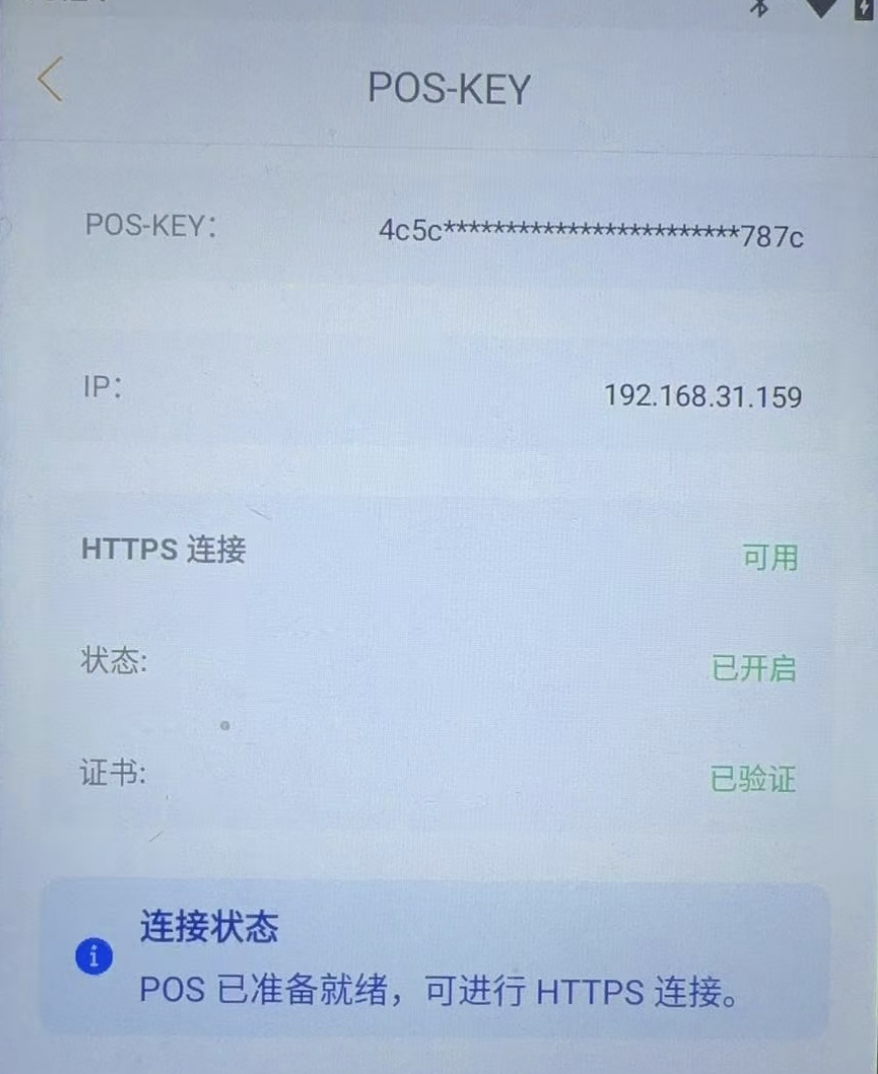
Go to Setting > ECR status, ensure the HTTPS connection is enable and HTTPS certification is generated automatically
Please ensure the support version at least 4.34.12
3. Client device - (e.g. Cashier Web App host request HTTPS ECR)
Ensure client device has been install CA.crt
SHA-256=9C 0F A4 04 C5 9F D7 A2 7E A3 1F 6B 96 F4 74 01 1B 3F 86 8A A0 84 61 47 4D 75 69 ED 63 0D 32 C3
SHA-1=A7 4C AD CE D7 21 AD CB 77 C8 F6 47 6C 19 E6 C6 4E 0E 6A 61
4. Host Connectivity - Async Notification Configuration
Merchant usually needs to setup server notification for the transaction status update on server side. Please contact our Technical support to setup Async Notification URL
Webhook configuration: Please request QFPay Technical Support technical.support@qfpay.com
Setup Configuration validation checklist
-
Haojin POS HTTPS status - ensured HTTPS is enabled and certificate is generated
-
Haojin POS installed client certification, fingerprint is correctly matched to ca.crt’s
-
android: trusted certification management
-
windows: 主控台1 -[主控台根目錄\憑證\受信任的憑證授權
-
-
Cashier configuration matches with POS and credentials, including match POS's IP address, secret
-
QFPay configuration - ensure service notification URL is configured
Host Connectivity for Odoo
To configuration Odoo’s Server Notification URL, take reference on Odoo Configuration
- For example, given that Odoo merchant URL is
shop-abc.odoo.comthe Server Notification URL will behttps://shop-abe.odoo.com/qfpay/notify
Troubleshooting
Connectivity issue
-
Check the POS system ECR status page to confirm that the HTTP service is working correctly.
-
Try opening the target address in your browser or using the curl command.
-
If the problem persists, restart the application and try step (2) again.
-
If the problem persists, try using a different POS machine.
-
If the problem persists, it may be a network issue. Check and confirm whether the merchant's network equipment has any limitations, such as Wi-Fi settings.
Troubleshooting - fixed IP address
-
check router configuration for POS
-
bind IP address with POS’s MAC address