> ## Documentation Index
> Fetch the complete documentation index at: https://sdk.qfapi.com/llms.txt
> Use this file to discover all available pages before exploring further.
# Element SDK
> Build custom checkout flows using QFPay’s prebuilt payment UI components.
QFPay’s **Element SDK** enables merchants to build customised checkout experiences using secure, prebuilt payment components hosted by QFPay.
It provides flexible front-end integration while keeping payment processing secure and compliant.
This guide explains how to integrate the Element SDK into your website or application.
***
## Integration Flow
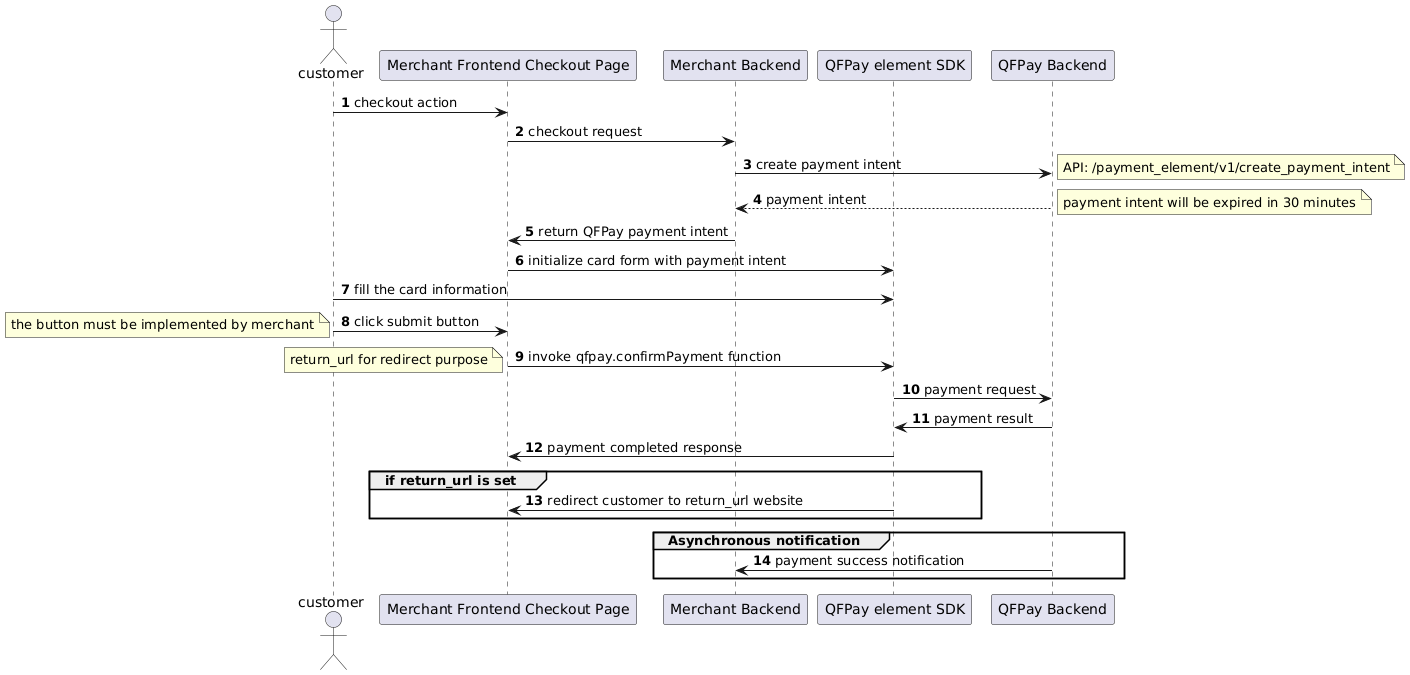
### Flow Summary
1. Create a **Payment Intent** via QFPay API.
2. Initialise the SDK using `QFpay.config()`.
3. Render payment UI (card form or wallet interface).
4. Collect customer payment details.
5. Confirm payment using SDK confirmation methods.
***
## Supported Payment Methods
The Element SDK supports:
* Alipay (Mainland China & Hong Kong)
* WeChat Pay
* UnionPay / QuickPass
* FPS
* PayMe
* Visa / Mastercard
* Apple Pay
* Card Pre-authorisation
***
## Step 1: Load SDK
Include the SDK script in your page:
```html theme={null}
{/* Sandbox */}
{/* Live Testing */}
{/* Production */}
```
***
## Step 2: Initialise SDK
```js theme={null}
const qfpay = QFpay.config({
region: 'hk',
env: 'prod'
});
```
| Parameter | Required | Values | Description |
| --------- | -------- | ------------------------ | --------------------- |
| `region` | No | `hk` \| `qa` | Region selection |
| `env` | No | `prod` \| `test` \| `qa` | Environment selection |
Returns the global `qfpay` object.
***
## Step 3: Create Payment Intent (Backend)
**Endpoint**
`POST /payment_element/v1/create_payment_intent`
### Headers
| Header | Required | Description |
| -------------- | -------- | ----------------- |
| `X-QF-APPCODE` | Yes | Store app code |
| `X-QF-SIGN` | Yes | Request signature |
### Parameters
| Parameter | Required | Description |
| -------------- | -------- | ------------------------- |
| `txamt` | Yes | Amount in cents |
| `txcurrcd` | No | Currency (e.g. HKD) |
| `pay_type` | Yes | Payment type code |
| `out_trade_no` | Yes | Merchant order number |
| `mchid` | No | Required for agent setups |
| `return_url` | No | Success redirect |
| `failed_url` | No | Failure redirect |
| `notify_url` | No | Webhook callback |
### Response
```json theme={null}
{
"respcd": "0000",
"payment_intent": "38aec7ce...",
"intent_expiry": "2026-01-01 12:00:00"
}
```
***
## Step 4: Retrieve Payment Intent (Frontend)
```js theme={null}
const result = qfpay.retrievePaymentIntent();
if (result.code === '0000') {
console.log('Payment intent valid');
}
```
***
## Step 5: Configure Appearance (Optional)
```js theme={null}
const elements = qfpay.element({
theme: 'night',
variables: {
colorText: 'black',
colorPaymentButton: '#000000',
colorPaymentButtonText: '#FFFFFF'
},
billingAddressDisplay: {
city: true,
address1: true
}
});
```
Use this to customise styling and billing fields.
***
## Step 6: Render Payment UI
### Wallet + Card Interface
```js theme={null}
elements.createEnhance({
selector: '#container',
email: true,
tab: true,
element: 'payment',
lang: 'en'
});
```
### Card Form Only
```js theme={null}
elements.create('#container');
```
***
## Step 7: Initiate Payment
### Card Payment
```js theme={null}
payment.pay({
goods_name: 'Premium Product',
paysource: 'payment_element'
}, intentParams.payment_intent);
```
### Multi-Wallet Payment
```js theme={null}
payment.walletPay({
paysource: 'payment_element_checkout',
out_trade_no: intentParams.out_trade_no,
txamt: intentParams.txamt,
txcurrcd: intentParams.txcurrcd
}, intentParams.payment_intent);
```
***
## Step 8: Confirm Payment
### Card / Apple Pay
```js theme={null}
const response = qfpay.confirmPayment({
return_url: 'https://example.com'
});
```
### Wallet Payments
```js theme={null}
const response = qfpay.confirmWalletPayment({
return_url: 'https://example.com'
});
```
| Code | Meaning |
| ------ | ------------------- |
| `0000` | Success |
| `1111` | Apple Pay cancelled |
| other | Failed |
***
## Step 9: Query Transaction
```js theme={null}
payment.inquiry({
out_trade_no: intentParams.out_trade_no
}, intentParams.payment_intent);
```
***
## Important Notes
If `lang` is not specified, the SDK uses the browser language.
Do not place the Element container inside a `
Payment intent expiry:\
• Production: 2 years\
• Sandbox: 7 days
Always generate signatures and create payment intents from your backend. Never expose secret keys in frontend code.