> ## Documentation Index
> Fetch the complete documentation index at: https://sdk.qfapi.com/llms.txt
> Use this file to discover all available pages before exploring further.
# HTTPS Setup for ECR Integration
> Guide to configure secure HTTPS communication between POS and client device for ECR integration.
This guide explains how to configure **HTTPS-based ECR (Electronic Cash Register) integration** between:
* QFPay POS (Haojin App)
* Client device (e.g. cashier web app)
* Merchant backend server (optional for async notification)
***
## Integration Overview
The HTTPS ECR flow requires configuration across three components:
1. **Merchant Portal (MMS)** → Enable HTTPS mode
2. **POS Device (Haojin App)** → Sync and verify HTTPS status
3. **Client Device** → Install certificate and send HTTPS requests
4. *(Optional)* Merchant backend → Receive async notifications
***
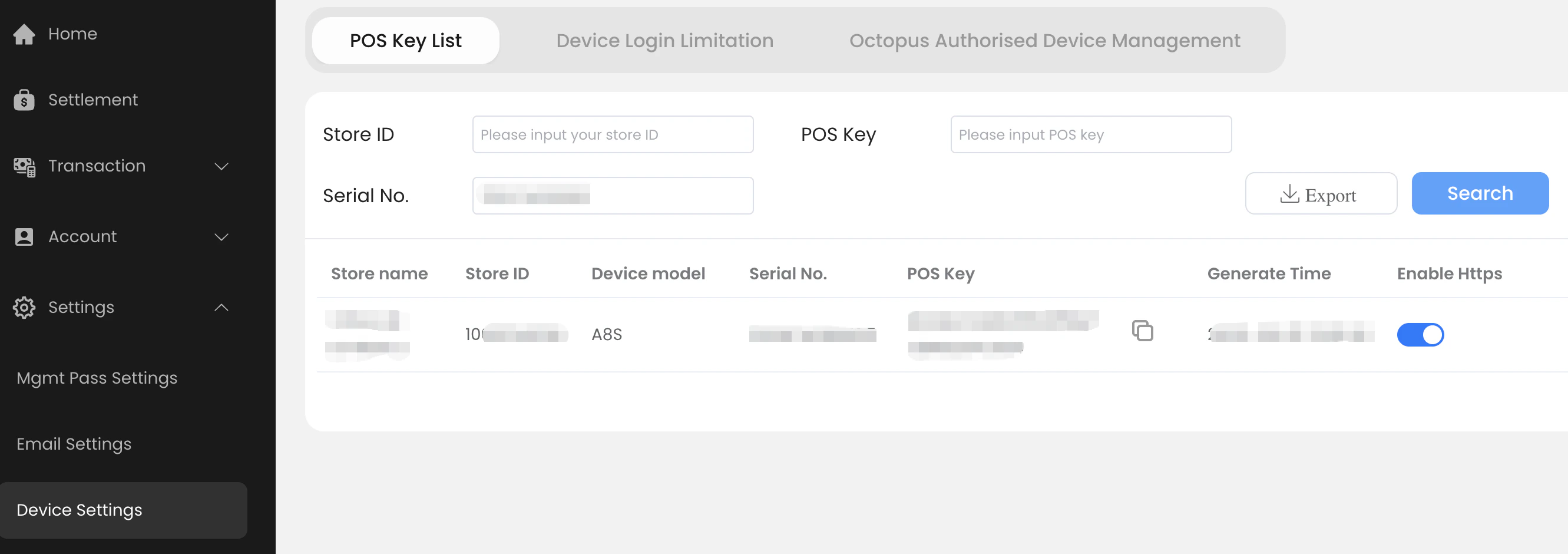
## 1. Enable HTTPS in Merchant Portal (MMS)
Go to:\
👉 [https://merchant.qfpay.global/main/devicePosMSetting](https://merchant.qfpay.global/main/devicePosMSetting)
Path:
`Settings` → `Device Setting` → Search `POS Key List`
* Enable **"HTTPS"**
* Save configuration
 ***
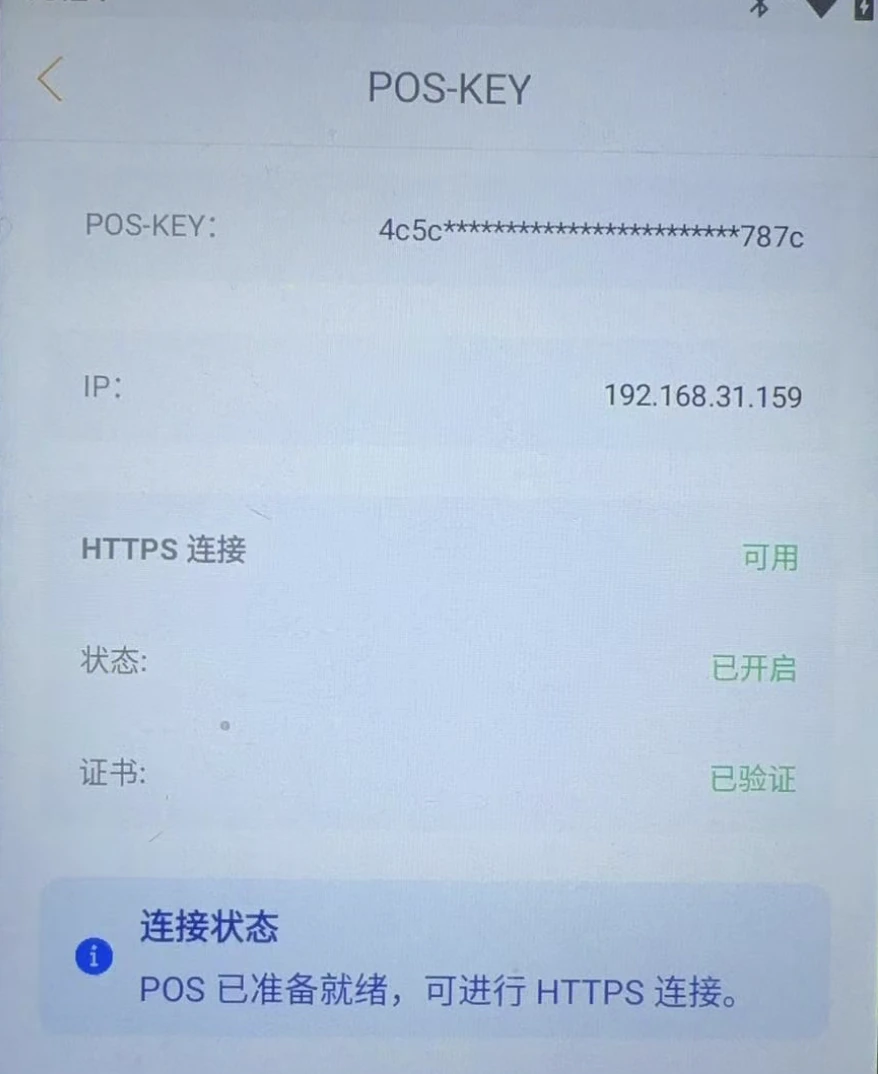
## 2. Verify HTTPS Mode on POS (Haojin App)
After enabling HTTPS:
* Restart or re-login Haojin App
* Configuration will automatically sync to the POS
Check status:
`Settings` → `ECR Status`
Ensure:
* HTTPS mode is **enabled**
* Certificate is **auto-generated**
Minimum supported version: **4.34.12**
***
## 2. Verify HTTPS Mode on POS (Haojin App)
After enabling HTTPS:
* Restart or re-login Haojin App
* Configuration will automatically sync to the POS
Check status:
`Settings` → `ECR Status`
Ensure:
* HTTPS mode is **enabled**
* Certificate is **auto-generated**
Minimum supported version: **4.34.12**
 ***
## 3. Configure Client Device (Cashier / Web App)
The client device must trust the POS HTTPS certificate.
### Install CA Certificate
Download and install:
`ca3.crt`
Verification fingerprints:
$$
SHA-256=9C 0F A4 04 C5 9F D7 A2 7E A3 1F 6B 96 F4 74 01 1B 3F 86 8A A0 84 61 47 4D 75 69 ED 63 0D 32 C3
SHA-1=A7 4C AD CE D7 21 AD CB 77 C8 F6 47 6C 19 E6 C6 4E 0E 6A 61
$$
### Installation Notes
* **Android**: Install under trusted credentials
* **Windows**:\
`Control Panel → Certificates → Trusted Root Certification Authorities`
***
## 4. Configure Merchant Backend (Async Notification)
For transaction status updates, configure your backend to receive notifications.
### Setup
* Contact QFPay support to register your webhook:\
👉 [technical.support@qfpay.com](mailto:technical.support@qfpay.com)
* Provide:
* Merchant ID
* Store ID
* Notification URL
Refer to:
👉 /docs/online-shop/integration-by-use-case/preauth/#async-notification
***
## Configuration Checklist
Before going live, confirm all items:
* [ ] POS HTTPS enabled in MMS
* [ ] Haojin App shows HTTPS **enabled + certificate generated**
* [ ] Client device installed CA certificate correctly
* [ ] Certificate fingerprint matches `ca3.crt`
* [ ] Client app connects using correct:
* POS IP address
* Secret / credentials
* [ ] Webhook / notification URL configured in QFPay
***
## Example: Odoo Integration
Reference:
👉 [https://www.odoo.com/documentation/19.0/applications/sales/point\_of\_sale/payment\_methods/terminals/qfpay.html](https://www.odoo.com/documentation/19.0/applications/sales/point_of_sale/payment_methods/terminals/qfpay.html)
Example:
Merchant domain:
```
shop-abc.odoo.com
```
Notification URL:
```
https://shop-abc.odoo.com/qfpay/notify
```
***
## Troubleshooting
### Connectivity Issues
1. Check POS → `ECR Status` page (ensure HTTPS service is running)
2. Test endpoint via browser or `curl`
3. Restart POS application
4. Try another POS device
5. Check network restrictions:
* Wi-Fi isolation
* Router firewall rules
***
### Fixed IP Address Issues
If connection is unstable:
1. Configure router DHCP settings
2. Bind POS MAC address to a fixed IP
3. Ensure client uses the same IP consistently
***
## Common Pitfalls
* Missing CA certificate → HTTPS request will fail
* Wrong POS IP → connection timeout
* HTTPS enabled in MMS but not synced to POS → restart required
* Webhook not configured → merchant cannot receive transaction updates
***
## Summary
To successfully enable HTTPS ECR:
* Enable in MMS
* Verify on POS
* Install certificate on client
* (Optional) Configure webhook
Once completed, the client device can securely communicate with POS via HTTPS.
***
## 3. Configure Client Device (Cashier / Web App)
The client device must trust the POS HTTPS certificate.
### Install CA Certificate
Download and install:
`ca3.crt`
Verification fingerprints:
$$
SHA-256=9C 0F A4 04 C5 9F D7 A2 7E A3 1F 6B 96 F4 74 01 1B 3F 86 8A A0 84 61 47 4D 75 69 ED 63 0D 32 C3
SHA-1=A7 4C AD CE D7 21 AD CB 77 C8 F6 47 6C 19 E6 C6 4E 0E 6A 61
$$
### Installation Notes
* **Android**: Install under trusted credentials
* **Windows**:\
`Control Panel → Certificates → Trusted Root Certification Authorities`
***
## 4. Configure Merchant Backend (Async Notification)
For transaction status updates, configure your backend to receive notifications.
### Setup
* Contact QFPay support to register your webhook:\
👉 [technical.support@qfpay.com](mailto:technical.support@qfpay.com)
* Provide:
* Merchant ID
* Store ID
* Notification URL
Refer to:
👉 /docs/online-shop/integration-by-use-case/preauth/#async-notification
***
## Configuration Checklist
Before going live, confirm all items:
* [ ] POS HTTPS enabled in MMS
* [ ] Haojin App shows HTTPS **enabled + certificate generated**
* [ ] Client device installed CA certificate correctly
* [ ] Certificate fingerprint matches `ca3.crt`
* [ ] Client app connects using correct:
* POS IP address
* Secret / credentials
* [ ] Webhook / notification URL configured in QFPay
***
## Example: Odoo Integration
Reference:
👉 [https://www.odoo.com/documentation/19.0/applications/sales/point\_of\_sale/payment\_methods/terminals/qfpay.html](https://www.odoo.com/documentation/19.0/applications/sales/point_of_sale/payment_methods/terminals/qfpay.html)
Example:
Merchant domain:
```
shop-abc.odoo.com
```
Notification URL:
```
https://shop-abc.odoo.com/qfpay/notify
```
***
## Troubleshooting
### Connectivity Issues
1. Check POS → `ECR Status` page (ensure HTTPS service is running)
2. Test endpoint via browser or `curl`
3. Restart POS application
4. Try another POS device
5. Check network restrictions:
* Wi-Fi isolation
* Router firewall rules
***
### Fixed IP Address Issues
If connection is unstable:
1. Configure router DHCP settings
2. Bind POS MAC address to a fixed IP
3. Ensure client uses the same IP consistently
***
## Common Pitfalls
* Missing CA certificate → HTTPS request will fail
* Wrong POS IP → connection timeout
* HTTPS enabled in MMS but not synced to POS → restart required
* Webhook not configured → merchant cannot receive transaction updates
***
## Summary
To successfully enable HTTPS ECR:
* Enable in MMS
* Verify on POS
* Install certificate on client
* (Optional) Configure webhook
Once completed, the client device can securely communicate with POS via HTTPS.